 how-to
Integrating Aerial Video Into 3D Property Tours
Table of Contents
- Why Combine Aerial Video With 3D Property Tours
- Planning Your Real Estate Drone Video Shoot
- Choosing Drone Footage for Virtual Tours: What to Capture
- Drone Video Editing for Property Listings
- Step-by-Step: Integrating Aerial Video Into a 3D Tour
- Real Estate Virtual Tour Best Practices for Aerial Content
- Measuring Tour Performance and Troubleshooting Issues
- Frequently Asked Questions
Last Updated: October 19, 2026
Why Combine Aerial Video With 3D Property Tours
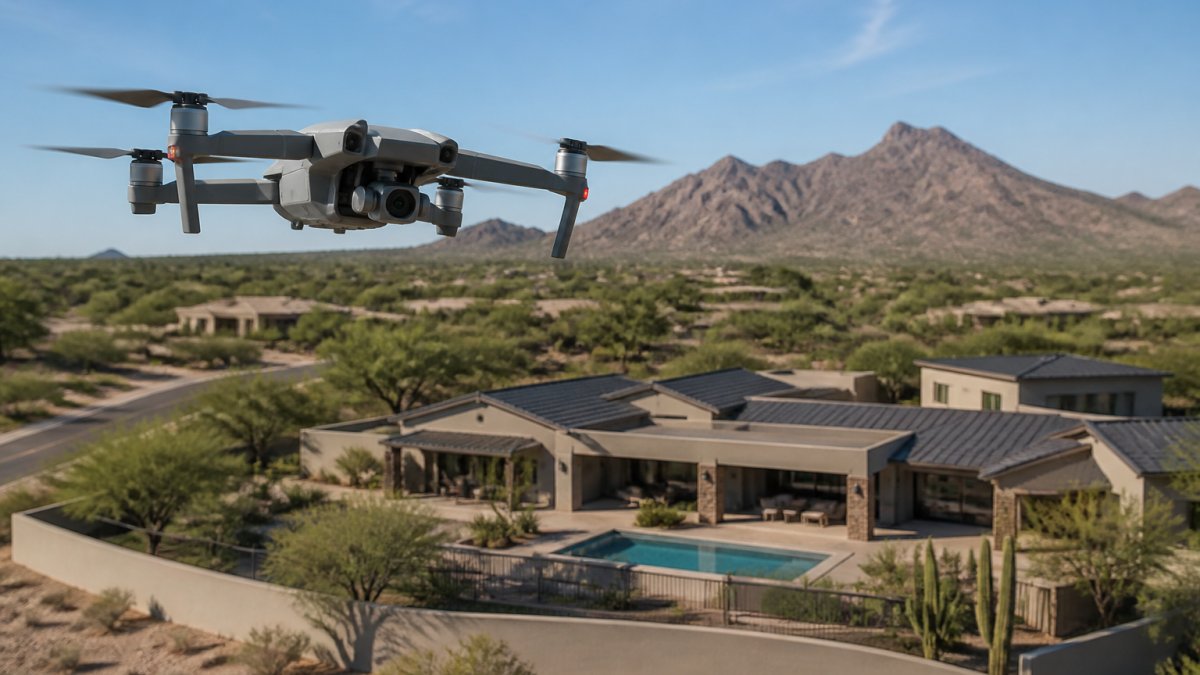
Aerial video adds the one thing an interior tour can't: context.
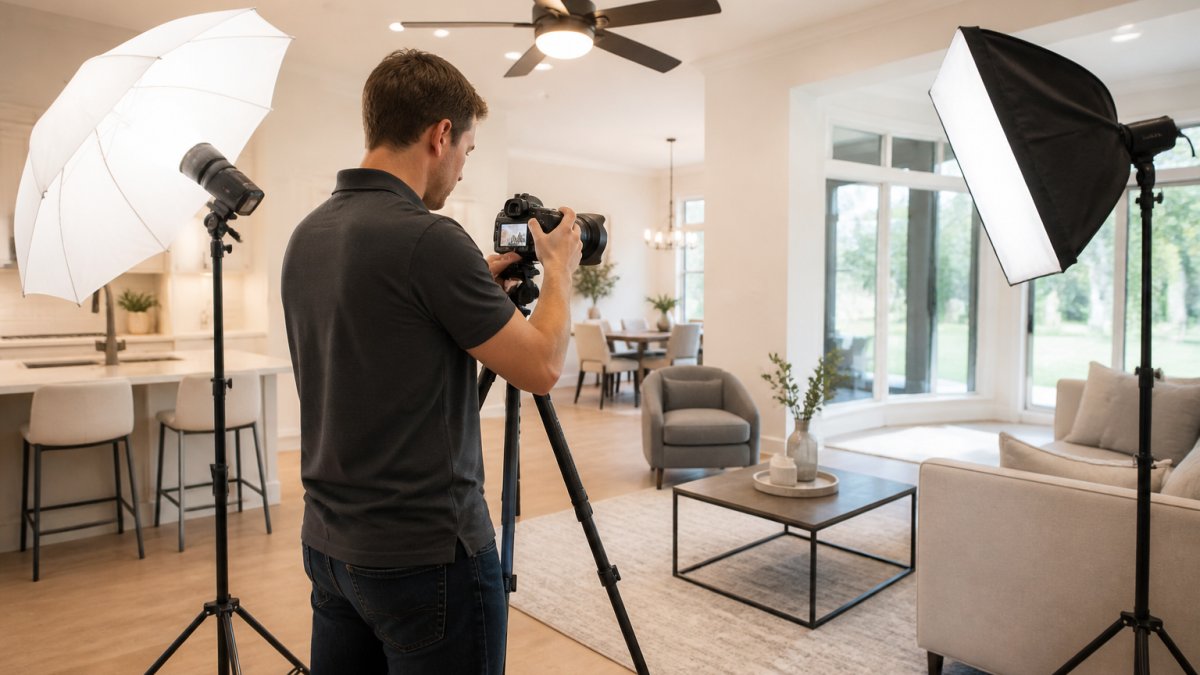
At Desert Home Photography, we build these tours for listings across the Valley.
A drone shot also shows what photos hide. Lot size, privacy, sun exposure, and distance to open space all read instantly from above.
- Exterior context: roof condition, lot lines, and landscaping
- Surroundings: mountains, greenbelt, roads, and neighbors
- Scale: how the home sits on the land
Buyers scrolling a listing decide fast. A tour that opens with a slow aerial push toward the house, then drops into the entry, keeps them watching.
Planning Your Real Estate Drone Video Shoot
Good aerial footage starts on the ground, with a plan. Skipping this step is the most common mistake we see in real estate drone video.
Here's how we plan a shoot:
- Check airspace and rules. Confirm the property isn't in restricted airspace, and follow FAA drone rules for commercial operators.
- Scout at ground level. Walk the lot to find the best angles and any obstacles.
- Pick the light. Early morning or late afternoon gives soft shadows and warm color.
- Map the flight path. Plan the moves that lead into the interior tour.
- Set a shot list. Match every aerial shot to a feature you want to sell.
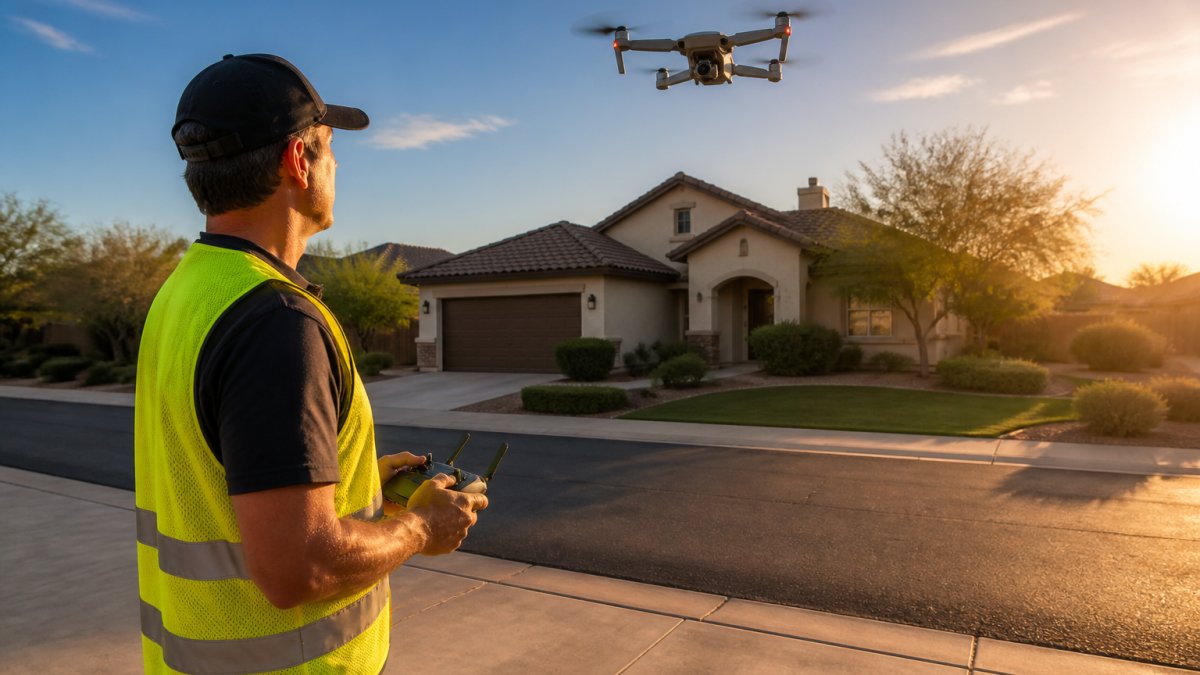
Flight Path and Camera Angles That Sell a Property
The best flight path tells a story. Start wide to show location, move closer to reveal the home, then finish at the entry so the edit can cut inside. Three angles do most of the work:
- High establishing shot: shows the neighborhood and lot
- Low approach: sweeps toward the front elevation
- Orbit: circles the home to show all sides and the yard
Keep moves slow and steady. Fast, jerky footage looks amateur and distracts from the property.
Choosing Drone Footage for Virtual Tours: What to Capture
Not every aerial shot belongs in the tour. Pick footage that answers a buyer's question, and cut the rest. For drone footage for virtual tours, the rule is simple: if a shot doesn't show a feature or a location benefit, it's filler.
Capture these shots for most listings:
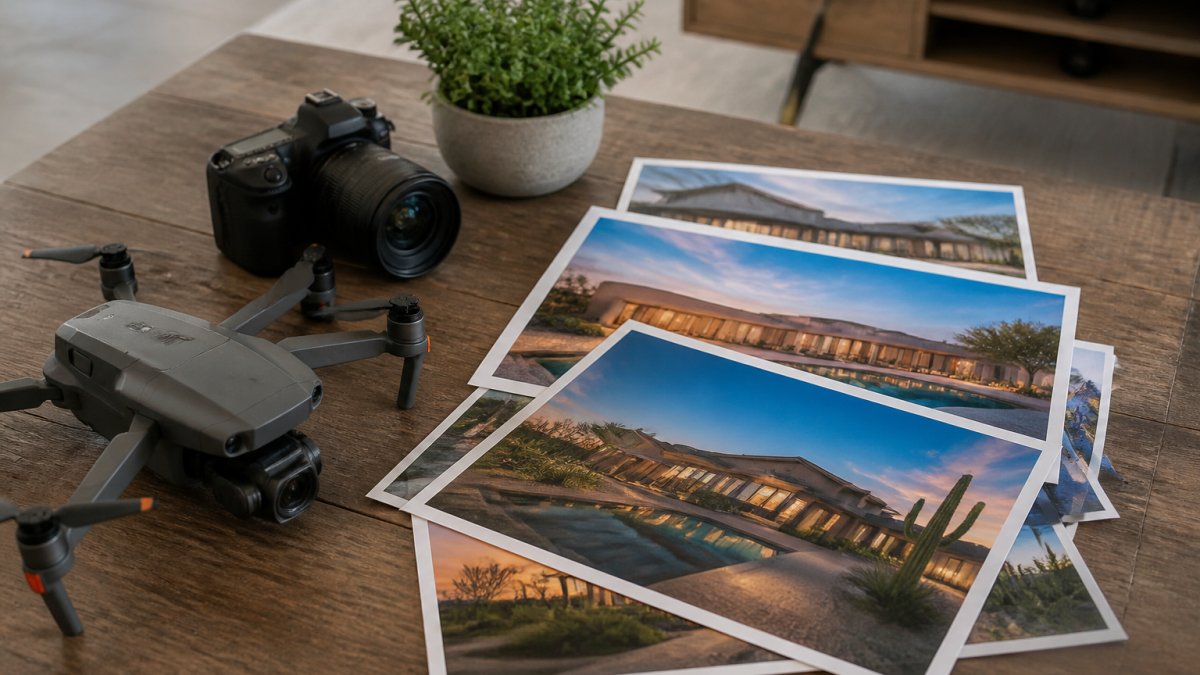
- Full exterior from four sides for a complete property exterior view
- Lot and property surroundings, including fences and outbuildings
- Neighborhood context: parks, schools, and major roads
Luxury listings need more. A hillside home or a property with acreage benefits from a wider orbit and a shot that shows privacy and distance from neighbors.
Drone Video Editing for Property Listings
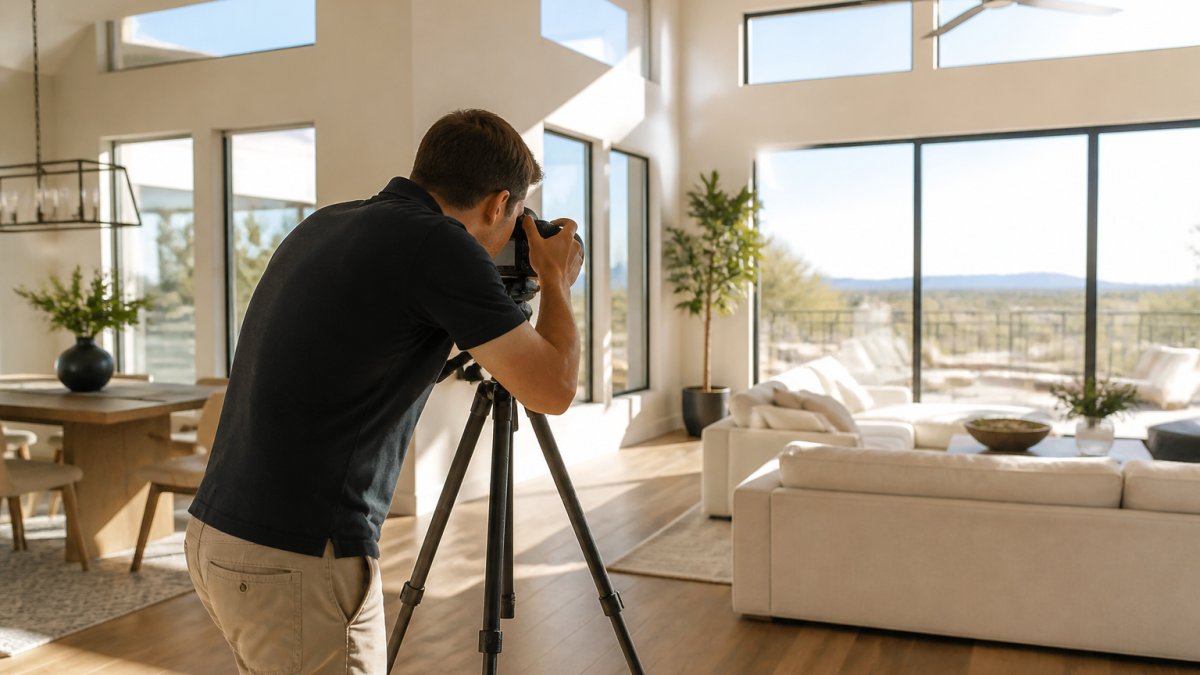
Editing turns raw clips into a tour. Drone video editing for property listings means trimming each shot, color-matching it to the interior footage, and building transitions that move the viewer from sky to room without confusion.
We keep aerial clips short, usually a few seconds each. Long drone shots lose attention. Color matters too: the sky and the interior should feel like the same day, same house.
- Trim to the strongest few seconds of each clip
- Match color and exposure to the interior footage
- Add smooth transitions from aerial to ground-level capture
Step-by-Step: Integrating Aerial Video Into a 3D Tour
Most guides stop at "upload the video and add a hotspot." The actual work is in file preparation and platform limits, and that is where tours break. This is the reproducible sequence we use to combine aerial video and a 3D interior tour into a single link.
Step 1: Prepare the aerial file before you touch the platform
Export the aerial clip to the specifications your tour platform accepts, not the other way around. A common pattern is H.264 video in an MP4 container at 1080p or 4K, 24 to 30 frames per second, and a 16:9 aspect ratio for full-screen playback. Keep individual clips short, a few seconds to about 15 seconds, because long clips inflate file size and slow the first load.
- Resolution: 1080p is the safe floor; 4K only if the platform and the buyer's connection can handle it
- Frame rate: 24 or 30 fps for smooth, cinematic motion; avoid mixing rates within one tour
- Codec and container: H.264 in MP4 is the most widely accepted combination
- Aspect ratio: 16:9 for full-screen; confirm whether the platform letterboxes vertical or square video
Step 2: Upload and place the aerial scene
Upload the prepared clip as a media asset, then place it as the tour's opening scene, ahead of the first interior room. Name the asset clearly (for example, "front-aerial-approach") so you can find it when linking hotspots later. Confirm the platform has finished processing the video before you build transitions; a scene that looks ready but is still transcoding will fail on publish.
Step 3: Build the transition into the entry
Set the transition from the aerial scene to the first interior room so the camera appears to move from the sky toward the front door. Match the direction of the aerial approach to the orientation of the entry panorama, if the drone flies toward the front elevation, the interior scene should open facing inward from that same door. A mismatched direction is the most common reason a transition feels jarring.
Step 4: Link hotspots in both directions
Add a hotspot on the aerial scene that jumps to the entry, and add a return hotspot inside the tour that brings buyers back to the aerial view. Label hotspots with plain text ("Aerial view," "Front entry") rather than icons alone, so they work for screen readers and for buyers who do not recognize the symbol.
- Opening hotspot: aerial scene to entry room
- Return hotspot: any room back to the aerial view
- Feature hotspots: jump to the pool, the view, or the acreage the aerial shot is selling
Step 5: Test before you publish
Run the tour on a desktop browser, an iOS phone, and an Android phone, on both Wi-Fi and a cellular connection. Check that the aerial clip autoplays or starts on tap, that the transition fires, that every hotspot lands where it should, and that the return path works. Test in the platform's preview mode first, then on the live link.
Step 6: Publish and verify the embed
Publish the tour, then open the public link in a private browser window to confirm it loads without a login. If you are embedding the tour on a listing page or a brokerage site, verify the iframe or embed code respects the platform's allowed domains and that the tour still plays after the page's own scripts load.
Real Estate Virtual Tour Best Practices for Aerial Content
Real estate virtual tour best practices come down to a few rules that keep aerial content useful instead of decorative. Follow them and the tour works on every screen.
- Keep aerial clips short and purposeful
- Lead with location, then move inside
- Caption key features so the tour works without sound
- Compress video so it loads fast on mobile
Accessibility and mobile performance are the two areas most tours ignore. A slow-loading tour loses buyers before the first room.
Measuring Tour Performance and Troubleshooting Issues
A tour is a marketing asset, so treat it like one: define what success looks like before launch, then check the numbers on a schedule. Most tour platforms report views, average time in tour, completion rate, and hotspot clicks. Pair those with the listing's own inquiry data to see whether the tour is doing its job.
The KPIs worth tracking
- Tour starts: how many visitors open the tour versus how many see the listing
- Average time in tour: a rough signal of engagement; compare aerial-led tours against interior-only tours on similar listings
- Completion rate: the share of viewers who reach the final scene
- Video plays and completion: how many start the aerial clip and how many watch it through
Set a baseline on your first few tours, then compare new listings against it. A common pattern is to review performance weekly for the first month of a listing and again after any price change or photo refresh.
Troubleshooting in order
When the numbers are weak, work from the top of the funnel down:
- High drop-off at the start: the opening aerial clip is too long or too slow; cut it to a few seconds and move to the interior sooner
- Low completion: the tour is slow to load or hard to navigate; compress the video, reduce scene count, and simplify hotspots
- Few hotspot clicks: labels are unclear or hotspots are hidden; make them text-labeled and place them where buyers look
- Few clicks to contact: add a clear call to action at the end and on the aerial scene
Tie the tour back to the listing
Tour analytics only matter if they connect to leads. Match tour views against showing requests and inquiry volume for the same period, and note which scenes buyers linger on. If the aerial view drives the most engagement, lead with it; if buyers skip it, shorten it and put the interior first. Review the data with the listing agent before the next shoot so the shot list improves each time.
Frequently Asked Questions
How do you add drone footage to a 3D property tour?
Export your edited aerial clip as an MP4 at 1080p or 4K, then upload it to your tour platform and place it as an opening scene or a hotspot linked from the exterior tour. Most platforms accept a hosted video URL or a direct file upload. Keep the clip under 60 seconds, set it to autoplay muted, and add a hotspot that jumps viewers from the aerial view straight into the interior walkthrough.
What aerial shots work best in a real estate virtual tour?
The shots that convert are an establishing orbit at 100 to 150 feet showing the lot and neighborhood context, a slow push-in toward the front elevation, and a low pass over the backyard, pool, or acreage. Add a reveal shot that rises from the roofline to show surrounding terrain. Skip fast pans and altitude jumps, since they disorient viewers on mobile and break the smooth transition into the interior tour.
How long should aerial video be in a real estate tour?
Keep aerial segments between 15 and 45 seconds, with 30 seconds a solid default. Aerial footage is a context-setter, not the main event, so a short clip that ends on a clear handoff point into the interior tour holds attention better than a two-minute cinematic reel. If the property sits on acreage or has standout surroundings, 45 to 60 seconds is reasonable.
What should you consider when planning drone footage for a property listing?
Check airspace restrictions and get any required clearances before the shoot, since controlled airspace and temporary flight restrictions near events or stadiums can block a flight. Confirm the operator holds an FAA Remote Pilot Certificate and carries liability insurance. Plan the flight path around sun position, avoid flying over people, and schedule the shoot before the listing photos so both media sets share consistent lighting and weather.
Selling a home means showing buyers everything at once: the interior, the lot, and the setting. That's hard to do with photos alone, and it's where a combined aerial and 3D tour earns its keep. Desert Home Photography brings FAA-licensed drone operators, immersive virtual walk-through tours, and hand-blended imaging to every listing, so the aerial and interior footage feel like one seamless experience. Call or text us to book a shoot and give buyers the full picture of your property.